A label around your data
Ask for text, a barcode and variable bindings. The Designer Copilot proposes changes to the label; the rendered comparison shows their effect with your selected sample data.
Explore the Designer →Your intent. Your agents. Your operation.
Describe the label or workflow you need. Use built-in Copilots or connect your own agent through native MCP to turn that request into structured, reviewable changes.
AI-native by design
Labels, automations and forms are structured documents. Their schemas describe supported objects, nodes and fields; stable IDs make changes traceable to the part being edited.
Copilot tools come from the same registries that define the product. Native MCP exposes Center operations through the same API and role checks as the interface. Your agent can read a schema, create a document, request a preview and return an inspectable result.
Explore the document formats →Start with a blank document or template and explain the layout, inputs or workflow you want.
Copilots return validated patches, findings and explanations. Applying and saving those changes are separate actions.
Check a label's rendered comparison or an automation's graph and sample run. Keep the version you intend to use.
From a request to useful work
Ask for text, a barcode and variable bindings. The Designer Copilot proposes changes to the label; the rendered comparison shows their effect with your selected sample data.
Explore the Designer →Ask the Automation Copilot to assemble supported nodes, transform fields and add conditions. Inspect the resulting graph, check findings and use the dry-run view before deploying.
Explore Automation →Use the saved-form Copilot API to propose field and rule changes. Request an explanation of a lint finding or a summary of matching audit events. The underlying findings remain available alongside the explanation.
Explore the agent tools →Your agent, connected to operation
An external agent can read permitted Runner status, automation runs and print outcomes through MCP or the API. Configure polling or a receiver for supported webhook events, then have it investigate repeated failures and prepare a proposed change for review.
You supply the agent, its schedule and notification rules. Built-in proactive monitoring and policy-driven autonomous fixes are planned capabilities. Today's native interfaces give your configured agent the access it needs.
Combine Center tools with your agent's own ERP, support or knowledge tools to extend the workflow around your business.
Plan an observation workflow →Watch for repeated failed print outcomes. Gather the relevant run and version details, explain the likely cause, and prepare a change for a person to review.
Choose the permitted tools and the records the agent may use. Configure any notification destination in your agent environment.
Changes with a visible history
With agent approval enabled, as it is by default, API-authored label and form versions remain drafts for human approval. New automation deployments require a human decision. The agent cannot disable that requirement itself.
Roles, saved versions and recorded authors remain part of the process. For labels, compare the proposed version with its approved predecessor and inspect the changed artwork before approval.
Explore version review →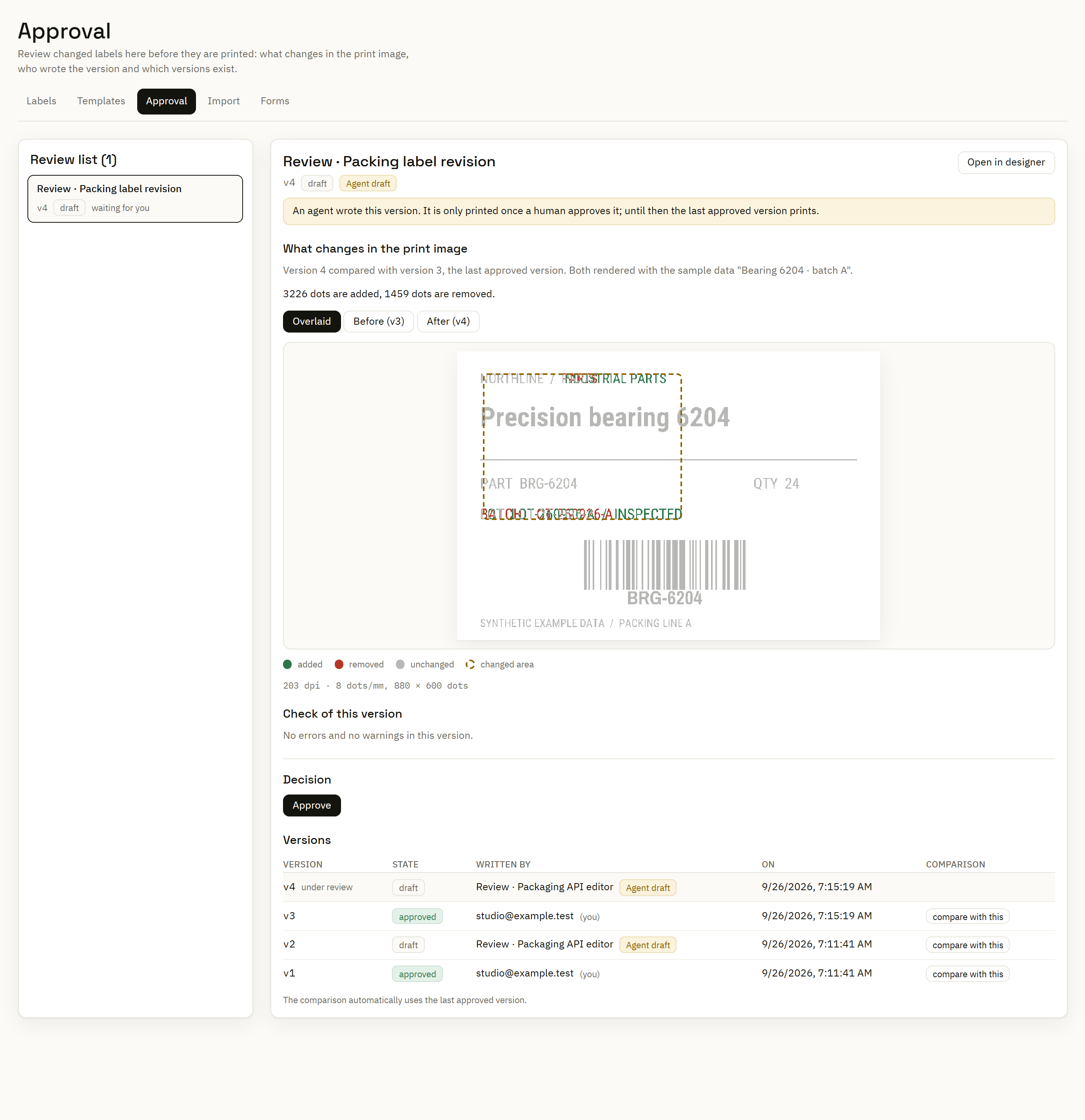
Bring your own model
Add an LLM credential, choose its provider and enter a model name. Supported tool-use formats are Anthropic Messages and OpenAI-compatible Chat Completions, including compatible local endpoints. The separate generic JSON provider supports explanations only.
Select the credential in AI settings. Copilots need a model that supports the required tools; label-image review also needs image input.
Built-in Copilot requests carry the document. Saved sample sets are shared only when enabled for that credential; runtime print values are not attached. The human label comparison can use samples locally.
An external MCP agent uses its own provider and data-sharing configuration.
The Runner executes configured workflows and printing without an LLM in its execution path. AI helps prepare and investigate the work; the saved documents and rendering engine determine the output.
See where the work runs →