Design and prepare
Designers maintain labels, variables, forms and automation documents. Saved versions provide a reference for review and distribution.
Control Center
Keep designs, review decisions and site deployments in one shared workspace. Choose the version that should run, then see which local services have applied it.
One workspace
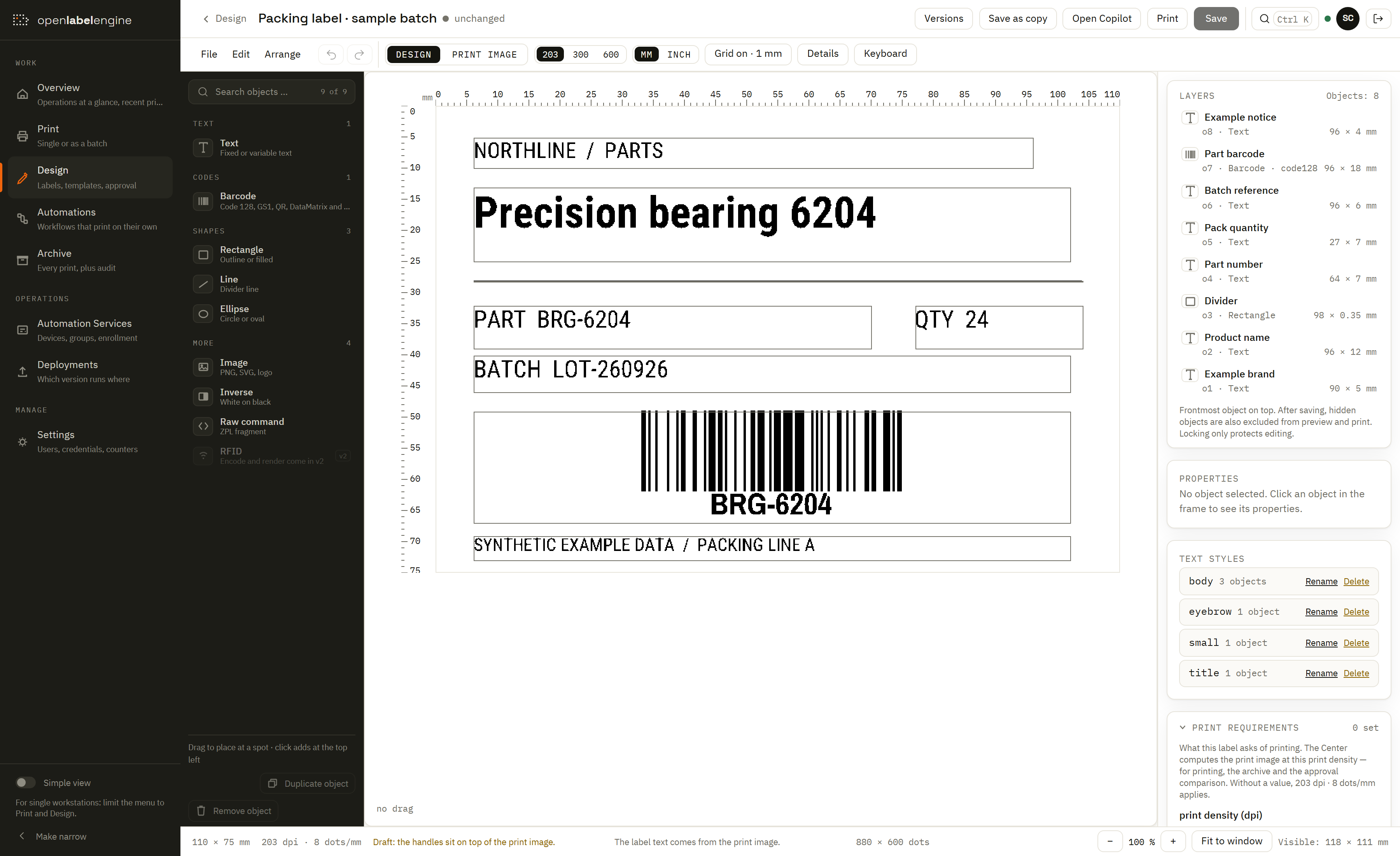
Move between label design, automation, printing and administration from the Center navigation. Each area stays connected to the same shared operation.
Review the actual change
A revised packing instruction can affect a line of text, a barcode or a required input. Open the review list to see the author, version and document findings beside a rendered comparison.
The comparison uses the same sample values for both versions. Added and removed dots reveal the design change without mixing it up with a different product or batch.
In this example, an API agent prepared a draft. The previous approved version remains the print version until a human approves the change.
Explore label versions and sample data →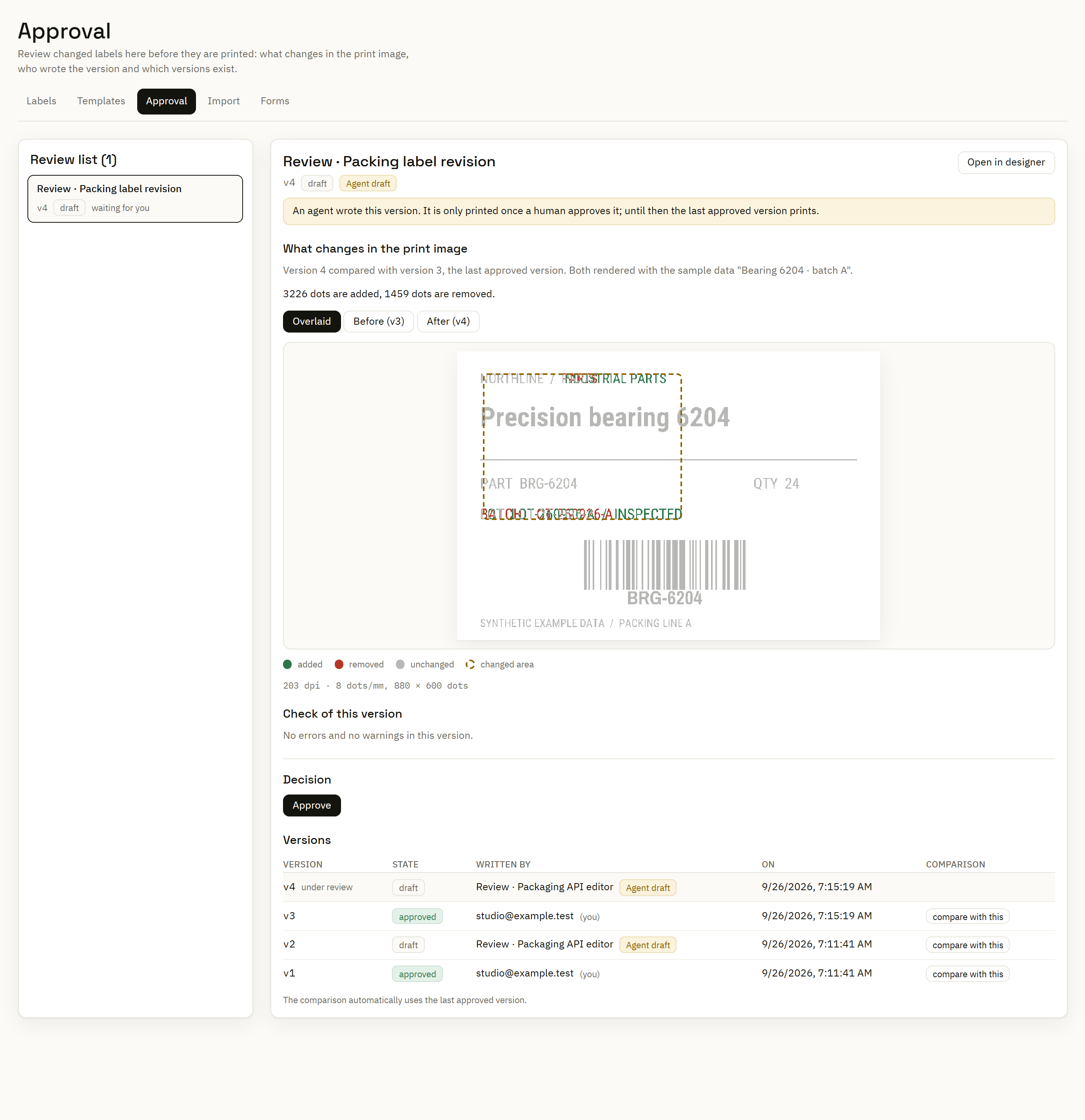
Clear responsibilities
Designers maintain labels, variables, forms and automation documents. Saved versions provide a reference for review and distribution.
Approvers inspect pending versions and their rendered changes. Human label review and a separate four-eyes rule are configurable, so the approval process can match your operation.
Operators use print workflows; administrators manage access, credentials and service enrollment. The Center enforces roles through its API as well as the interface.
Version distribution
A saved document, a deployment and a service's applied version describe different stages of the rollout.
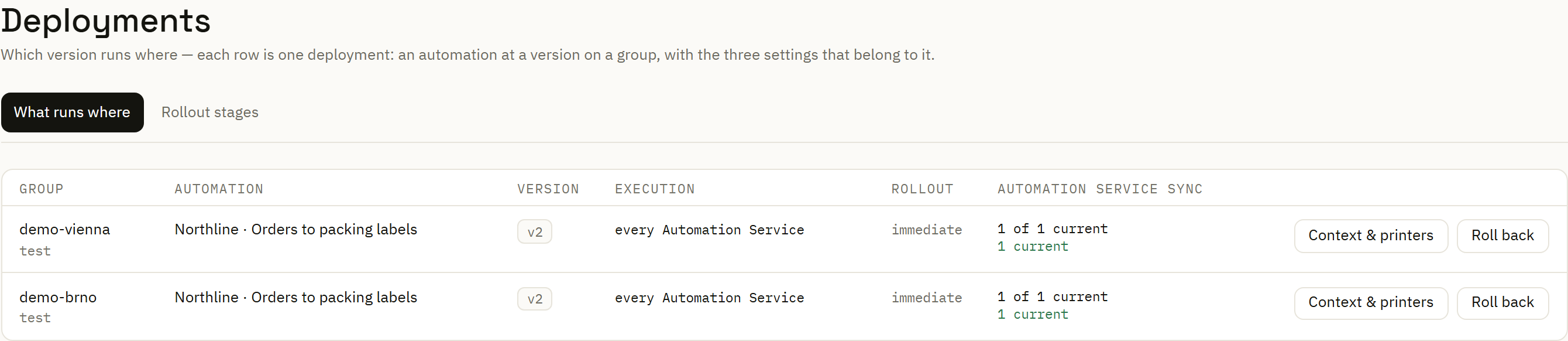
Deploy an explicit automation version to a service group. Referenced labels, fonts and assets travel with the required configuration.
Use a logical name such as packing-a in the workflow, then map it to the destination at that deployment. Site-specific settings keep addresses and local values out of the shared process.
Inspect desired and applied state before relying on the new version. Groups with multiple services can roll out in stages; rollback lets you return to an earlier deployment configuration.
Changes and daily operation
The audit log records who changed the setup. The print archive records label requests and their outcomes. Together, they help a reviewer follow a configuration change through to the work it affected.
Monitor daily label printing →The Center is the shared application. An automation is a saved workflow. An Automation Service, also called a Runner, executes deployed work near the printers and data sources.
See where the work runs →